
Custom HUD Setup Guide for Free Fire With Macro Space
Your HUD, the on-screen layout of fire button, joystick, and controls, is the physical interface your thumbs touch, and Macro Panel APK's DPI and sensitivity tools change how it behaves. A great HUD makes drag headshots and movement feel effortless; a bad one makes thumbs fight the screen. This guide builds from principles, not pro screenshots, their thumbs aren't yours. Grab the latest build from the macro panel app page before you start.
Key insight: HUD, DPI, and sensitivity are one system. DPI sets screen scale, sensitivity sets drag travel, HUD sets where thumbs start drags. Change one, check the other two. Tuning sensitivity for weeks while ignoring the HUD optimizes two-thirds of the system.
Key takeaways: Build from thumb ergonomics: fire button under your resting aim thumb, joystick under your move thumb, clear drag path on the right. Re-check positions after any DPI change, DPI rescales everything. Add fingers only when the layout supports them; change one button at a time; give layouts two weeks.
HUD basics: what you're actually arranging
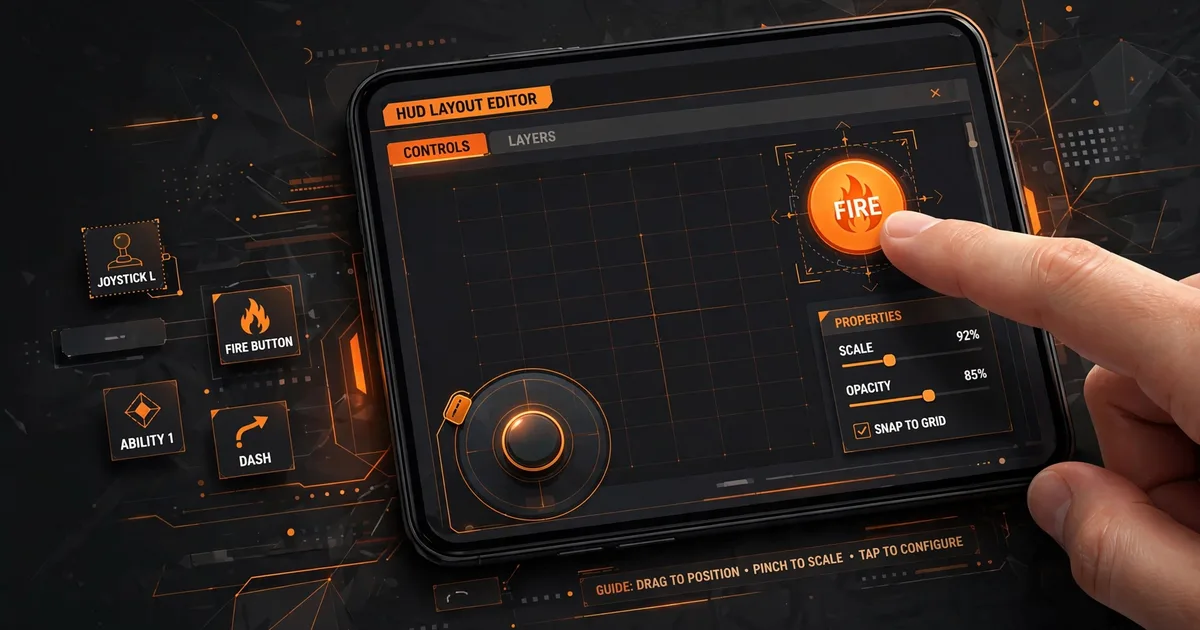
Free Fire's HUD editor (in-game Settings → Controls → Custom HUD) lets you drag every button anywhere, resize them, and adjust transparency. The pieces that matter most: the fire button (your aim thumb lives here), the joystick (your movement thumb), and the drag area, the empty screen space your aim thumb swipes across. Everything else (jump, crouch, prone, medkit) is secondary: important, but they don't touch your aim. Once you have this down, move on to sensitivity setup.
Start from the default, designed for average thumbs, a fine baseline, and change with purpose. Fix specific complaints ("thumb runs out of screen on upward drags," "keep hitting crouch instead of fire"), not aesthetics. Every move should answer a real problem from a real match.
The Macro Space connection: DPI changes your HUD
The interaction most guides miss: Macro Panel APK's DPI setting rescales your entire screen, including HUD buttons. Raise DPI and buttons shrink under your thumbs; lower it and they grow. You'll blame your aim when the real culprit is a button that moved. For best results, combine this with GFX tool settings.
The rule: every DPI change is followed by a HUD check. Confirm the fire button sits under your resting thumb, the joystick needs no stretch, the drag path is clear. Resize what feels off, then re-verify sensitivity in the training ground, because the geometry your muscle memory learned has shifted.
Building the layout: thumb zones and the drag path
Design around two thumb zones: your left thumb's resting arc (joystick, lower-left) and your right thumb's (fire button and drag area, right side). The fire button goes where your right thumb rests, not where it can reach, resting gives instant response; reaching causes strain. Size it 60-70% so you hit it without looking.
Protect the drag path: the vertical band where upward drags travel. Keep small buttons (crouch, prone, scope) out of it, a thumb hitting crouch mid-drag is a missed headshot with a mystery cause. Push secondary buttons to screen edges, shrink them, set 40-60% transparency: findable, not prominent.
2-finger, 3-finger, or claw?
Two thumbs is the default and perfectly competitive, most players never need more. Three fingers (index on fire or scope) helps an overloaded aim thumb. Four-finger claw gives dedicated fingers for fire, scope, move, and aim, maximum control, but demands weeks of retraining and hand comfort many never achieve.
Honest advice: more fingers only help when the layout supports them. A copied pro claw on different thumbs with different DPI loses to a well-tuned two-thumb setup. Add a finger only for a named limitation ("I can't scope and drag simultaneously"), and budget two weeks of deliberate practice. You'll play worse during them; that's tuition, not failure.
The two-week rule and one-button adjustments
HUD layout is muscle memory like sensitivity, every change resets thumb training, which is why chronic tweakers plateau. The discipline: give any layout two full weeks of real matches before judging. Day-one awkwardness is learning, not failure.
When something is genuinely wrong, adjust one button at a time: move the fire button 5%, play three matches, evaluate. Change three buttons at once and you'll never know which mattered. Screenshot each layout first so you can step back. The best HUDs belong to players who stopped changing a good one.
FAQs
What is a custom HUD in Free Fire?+
HUD stands for heads-up display, the on-screen layout of your fire button, joystick, jump, crouch, and other controls. A custom HUD is your personal arrangement of those buttons: their positions, sizes, and transparency, tuned to your thumbs and play style.
Should my HUD change when I change DPI in Macro Space?+
Usually yes. DPI changes the physical size of everything on screen, including buttons. After any DPI change, open the HUD editor and confirm fire button and joystick are where your thumbs expect, resize or reposition as needed.
What is the best HUD layout for drag headshots?+
One that lets your aim thumb travel freely: keep the right side of the screen clear around the fire button, use a large fire button positioned where your thumb rests naturally, and avoid cluttering the drag path with small buttons your thumb collides with mid-swipe.
How often should I change my HUD layout?+
As rarely as possible. Like sensitivity, HUD layout is muscle memory, every change resets weeks of thumb training. Settle on a layout, give it at least two weeks of real matches, and only adjust one button at a time when something is clearly wrong.
Bottom line: HUD, DPI, and sensitivity are one system: DPI rescales buttons, so re-check the HUD after any DPI change. Build around resting thumb zones, protect the drag path, add fingers only for named limitations, and give every layout two weeks.

Viktor Kane , Gaming Performance Analyst
Viktor Kane has benchmarked 300+ gaming utility apps on real Android devices since 2020. He specializes in Free Fire performance tools, testing sensitivity panels and macro utilities on a rack of budget to flagship phones before any download button goes live.