
Macro Space GFX Tool Settings Explained: Smooth to 4K
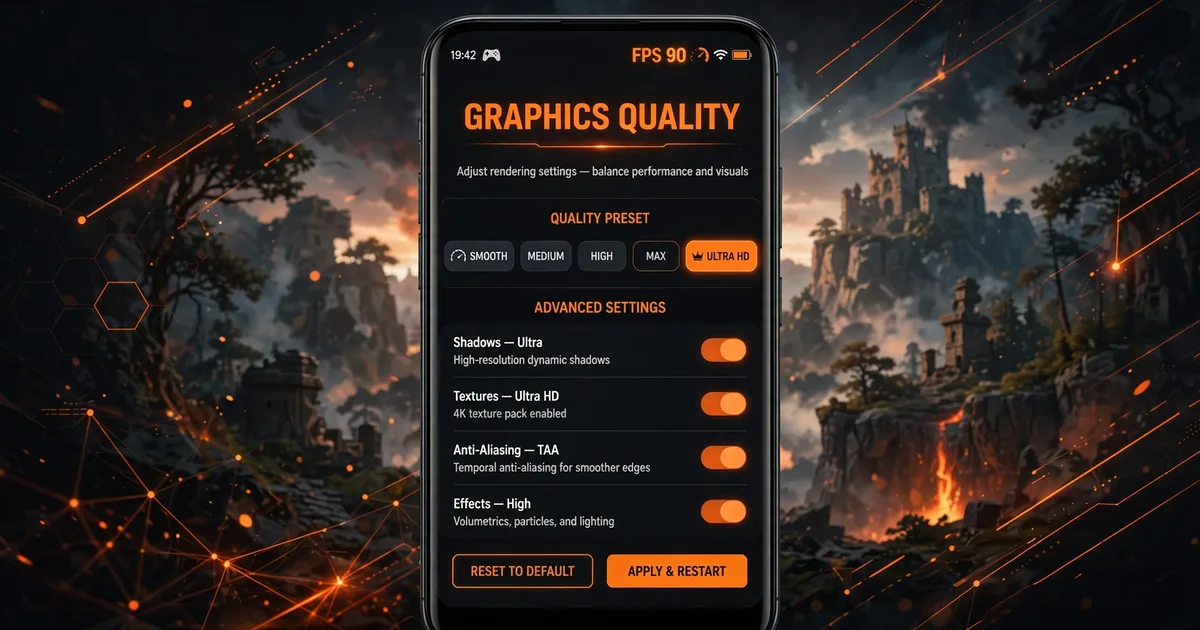
Macro Panel APK's GFX tool is a graphics control panel for Free Fire: preset quality from Smooth to 4K-style rendering, a 30-120 FPS cap, and render-resolution adjustment. Used well, it trades pixels you don't need for frames you do. Maxed blindly on a budget phone, it turns the game into a hand warmer with slideshow aim. This guide explains what each setting does and which combination fits your phone. Grab the latest build from the Macro Panel official website page before you start.
Free Fire's in-game graphics menu is coarse; the panel gives finer dials. But they only help if you understand each tradeoff: quality, frame rate, and resolution all pull from the same budget, your phone's GPU and battery. Any guide saying "just max everything" is spending money your phone doesn't have. If you want to go further, see run Macro Space on PC emulator.
Key takeaways: Macro Panel APK's GFX tool controls preset quality (Smooth→4K), FPS cap (30-120), and render resolution. Aim improves with stable high FPS, not prettier graphics, most competitive players run Smooth/Balanced at the highest stable FPS. Match the preset to your phone's tier; overheating causes throttling that tanks FPS. Restart Free Fire after changes.
The three dials: preset, FPS, resolution
Graphics preset (Smooth → Balanced → HD → HDR → Ultra → 4K) controls texture detail, shadows, and effects. Smooth strips the visuals to the minimum the game allows; each step up adds detail the GPU must compute every frame. FPS cap (30-120) sets the maximum frames per second the game targets, higher means smoother motion and more frequent aim updates, but demands proportionally more GPU work. Render resolution sets how many pixels the game actually draws; lowering it is the single most effective performance lever, because fewer pixels means less work per frame across the board.
These three multiply: Ultra at 120 FPS and full resolution asks roughly an order of magnitude more GPU work than Smooth at 60 FPS and reduced resolution. "Max everything" fails on mid-range phones because it's three demanding settings stacked, not one.
What actually helps your aim (it's not what you think)
Here is the quotable truth: aim improves with stable, high frame rates, not with prettier graphics. Your crosshair's position refreshes once per frame, so at 30 FPS your aim updates half as often as at 60 FPS, and a third as often as at 90+. Shadows and texture detail do nothing for your drag headshots; frame pacing does everything. For best results, combine this with lag fix guide.
That's why competitive players choose Smooth or Balanced with the highest FPS their phone sustains stably. Plain visuals, but the game becomes a metronome, and muscle memory needs a metronome. Pick the preset where frame rate stays flat, not the one that looks best in the lobby. Once you have this down, move on to custom HUD guide.
Recommended settings by phone tier
- Low-end (2-3 GB RAM, older chips): Smooth preset, 60 FPS cap, reduced render resolution. Priority is a locked, stutter-free 60, this alone transforms the game on weak phones.
- Mid-range (4-6 GB RAM): Balanced preset, 90 FPS if the phone sustains it, otherwise 60. Test both in the training ground; keep whichever holds flat under combat load, not in the lobby.
- High-end (8 GB+ RAM, flagship chip): HD or HDR preset, 90-120 FPS, full resolution. You have headroom, but still verify stability, because even flagships throttle when hot.
Judge presets by real fights with effects everywhere, not the lobby, lobby FPS lies, combat FPS tells the truth.
Heat, battery, and the throttling trap
High presets generate heat, triggering thermal throttling, the phone slows its chip to cool down and frame rate collapses mid-match. Settings feel amazing for ten minutes, then aim falls apart exactly when the match gets serious.
Signs of throttling: uncomfortable heat, smooth frame rate hitching after 15-20 minutes, recovery after cooling. The fix is one preset step down, it often raises real-world average FPS by eliminating throttle crashes. A cool phone at locked 60 beats one swinging between 90 and 30.
How to apply GFX changes correctly
Set preset, FPS cap, and resolution in Macro Panel APK's GFX tab, then force-close Free Fire and relaunch, the renderer initializes at launch, so mid-game changes may only partially apply. Then spend two minutes in the training ground: drag, spray, scope. If the game looks identical, you skipped the restart.
Re-check GFX settings after every Free Fire OB update, major updates sometimes reset graphics values, and a week on silently-reset settings loses winnable gunfights.
FAQs
What does the GFX tool in Macro Space actually change?+
It adjusts graphics preset (Smooth to 4K-style), frame-rate cap (30-120 FPS), and render resolution. Lower presets cut GPU load for weak phones; higher presets sharpen visuals at the cost of heat and battery.
Will a higher GFX preset improve my aim?+
Indirectly, aim comes from stable high frame rates, since your crosshair updates once per frame. Many competitive players choose Smooth/Balanced with high FPS over Ultra graphics.
Why does my phone get hot on high GFX settings?+
High presets push the GPU to render more pixels per frame while the FPS cap keeps it working at full speed. Sustained load means sustained heat. If your phone thermal-throttles, frame rates collapse, which is worse for aim than just using a lower preset from the start.
Do GFX changes apply without restarting Free Fire?+
Most preset and FPS changes need a game restart to take full effect, because the game initializes its renderer at launch. Apply your settings in the panel, force-close Free Fire, and relaunch, then verify the change in the training ground.
Bottom line: Macro Panel APK's GFX tool trades pixels for frames: preset, FPS cap, and resolution share one GPU budget. Aim comes from stable high FPS, run the highest FPS your phone holds flat, restart after changes, step down if heat throttles.

Viktor Kane , Gaming Performance Analyst
Viktor Kane has benchmarked 300+ gaming utility apps on real Android devices since 2020. He specializes in Free Fire performance tools, testing sensitivity panels and macro utilities on a rack of budget to flagship phones before any download button goes live.