
Macro Space on PC Emulator: BlueStacks & LDPlayer Setup Guide
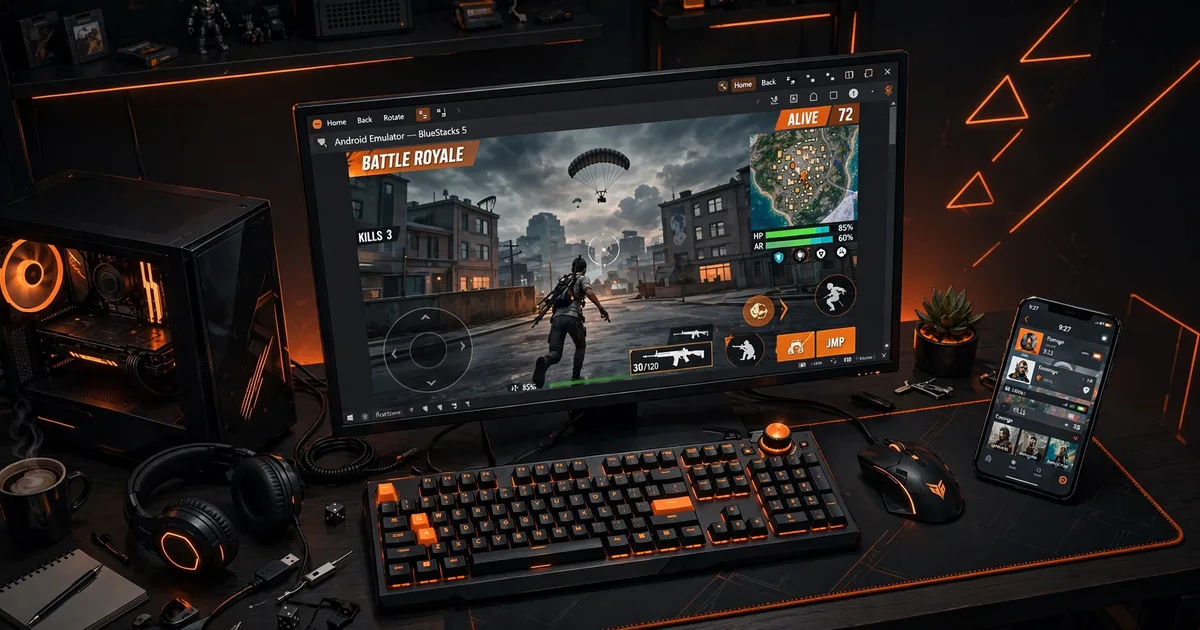
Macro Panel APK runs on PC emulators like BlueStacks, LDPlayer, and MEmu, the APK installs with a drag and drop, and the floating panel works over Free Fire exactly as on a phone. Setup takes about fifteen minutes. The part needing care isn't installation but tuning: mouse aim and touch aim are different input systems, and phone sensitivity values won't transfer directly. Grab the latest build from the Macro Panel official website page before you start.
This guide covers the full setup: picking an emulator, installing the panel, fixing the two problems everyone hits (overlay permission and keymapping clashes), and re-tuning sensitivity for mouse input. Read the tuning section even if the install goes smoothly, it is where emulator setups succeed or fail. This works even better alongside graphics settings.
Key takeaways: LDPlayer suits low-end PCs, BlueStacks stronger ones, enable VT in BIOS first. Drag the Macro Panel APK into the emulator, grant display-over-apps permission, launch the panel before Free Fire. Re-tune all sensitivity for mouse input; phone values will feel wrong. Test on a guest account first.
Pick your emulator (and enable virtualization)
For most players the choice is between LDPlayer 9 and BlueStacks 5. LDPlayer is lighter and tends to run better on modest PCs; BlueStacks has broader compatibility and better multi-instance tools on stronger machines. MEmu is a solid third option. Whichever you choose, install the 64-bit version, Free Fire and modern panels are happiest there. For best results, combine this with HUD setup.
Before installing anything, enable virtualization (VT-x/AMD-V) in your BIOS. Emulators will run without it, but slowly and with stutter that you will misdiagnose as a panel problem. One BIOS toggle is the single biggest performance upgrade for emulator gaming, and every emulator's installer will warn you if it is off, do not ignore that warning.
Step-by-step: installing Macro Space on the emulator
- Install the emulator and complete its first-launch setup, including signing into Google Play if you want the Play version of Free Fire.
- Drag the Macro Space APK (v5, 8.7 MB) into the emulator window, it installs automatically, no unknown-sources toggle needed.
- Open the panel once and grant every permission it requests, especially display over other apps. On emulators this permission lives in the virtual Android's Settings → Apps → Macro Space → Display over other apps.
- Launch order matters: start Macro Space first, confirm the floating icon appears, then launch Free Fire. Reversing the order is the most common reason the overlay "doesn't work."
- Set your panel values, but treat them as rough drafts until you complete the mouse tuning below.
Fixing the two classic emulator problems
Problem 1: the floating panel never appears. This is the overlay permission, nine times out of ten. Emulator Android sometimes silently denies it. Go into the emulator's Android settings (not the emulator's own settings app, the Android settings inside it), find the panel under Apps, and manually enable "Display over other apps." Restart the panel afterward.
Problem 2: the panel's overlay fights the emulator's keymapping. Emulators draw their own key-mapping overlay for keyboard controls, and two overlays can overlap or steal clicks. Fix it by moving the panel's floating icon to a screen corner away from your keymapping buttons, and avoid binding keyboard keys to screen areas the panel uses. If clicks still misbehave, toggle the emulator's keymapping overlay off while you configure the panel, then turn it back on.
Sensitivity on PC is a different sport
The truth that sinks most emulator setups: phone sensitivity values feel wrong with a mouse, and that's expected. Touch aim is drag-based; mouse aim is displacement-based, filtered through emulator mouse sensitivity and Windows pointer speed. The panel's sliders still work, but the numbers mean different things.
Start from a neutral baseline (general sensitivity around 85-90 in the panel), set your emulator's mouse sensitivity to its default, and tune in the training ground exactly like you would on a phone: one weapon at a time, small adjustments, write down what works. Change only one variable per test, panel slider, emulator mouse speed, or Windows pointer speed, never two at once. Most players land on panel values 5-15 points lower than their phone equivalents.
Performance settings that actually matter
Give the emulator 4 CPU cores and 4 GB of RAM in its settings, less starves Free Fire, more can starve Windows itself on mid-range PCs. Enable the emulator's high-FPS mode (120 FPS if your monitor and GPU can sustain it) and match it with the panel's FPS setting so the two agree. Close Chrome and other heavy apps on the host PC; an emulator is already running an entire second operating system, and background apps steal the CPU cores your aim depends on.
If you get micro-stutter that survives all of this, drop the emulator's resolution one notch before touching anything else. A smooth 1280×720 beats a stuttering 1920×1080 every time, stutter destroys aim far more than pixels do.
FAQs
Does Macro Space work on BlueStacks?+
Yes. BlueStacks 5 runs the APK normally, drag the file into the emulator window to install, grant the overlay permission when prompted, and launch Macro Panel APK before starting Free Fire. Use a 64-bit instance for the most stable result.
Why is the floating panel not showing on my emulator?+
The usual cause is the display-over-other-apps permission being denied, or the emulator's own overlay blocking it. Open the emulator's Android settings, find Macro Panel APK under Apps, enable 'Display over other apps,' then restart both panel and game.
Do I need to root the emulator for Macro Space?+
No. The panel works with standard overlay permissions and does not require root on emulators, exactly as on physical phones. Avoid 'rooted emulator' guides, they add instability without giving the panel anything it needs.
Is using Macro Space on an emulator risky for my Free Fire account?+
Emulators are officially supported by Free Fire, but a third-party overlay panel is still third-party software. The cautious approach is the same as on phones: test new setups on a guest account first and keep your main account away from experiments.
Bottom line: Installing Macro Panel APK on an emulator is easy, drag the APK in, grant overlay permission, launch the panel before the game. The real work is re-tuning sensitivity for mouse input and keeping the overlay clear of the emulator's keymapping.

Viktor Kane , Gaming Performance Analyst
Viktor Kane has benchmarked 300+ gaming utility apps on real Android devices since 2020. He specializes in Free Fire performance tools, testing sensitivity panels and macro utilities on a rack of budget to flagship phones before any download button goes live.