
Tablet Sensitivity Settings for Free Fire (iPad and Android)
Phone sensitivity on a tablet feels like steering a truck with a toy wheel. The screen is nearly twice as wide, your thumbs travel farther, and every value that worked on your phone now overshoots or drags. Tablets are genuinely excellent for Free Fire, bigger targets, wider vision, steadier grip, but only once the sensitivity is rescaled for the big screen. This guide gives you tested tablet baselines for Macro Panel APK, plus HUD and DPI adjustments that make 10-inch play feel natural. Get the panel from the official Macro Panel download page first.
Our review team, led by Viktor Kane, tested on an iPad 10th gen and a Galaxy Tab S9 FE, the two most common tablets in the Free Fire community. The principles below apply to any 10 to 11-inch tablet, with notes for smaller 8-inch models.
Key takeaways: Scale phone sensitivity DOWN by 10 to 15 points on tablets: bigger screens need less sensitivity, not more. Tablet baseline: General 85, Red Dot 75, 2x 65. Spread your HUD wider and raise DPI slightly to shorten thumb travel.
Why phone settings fail on tablets
It is pure geometry. On a 6.5-inch phone, a full 180-degree turn might take a 4cm thumb swipe. On a 10.9-inch tablet, the same in-game turn covers far more screen distance, so the same sensitivity value sends your crosshair flying past the target. New tablet players almost always complain their aim is too fast. It is not too fast, it is phone-fast on a tablet screen.
The fix is counterintuitive: lower your sensitivity on the bigger screen. Your thumbs already travel farther, they do not need extra speed on top of it.
Tablet baseline settings (10 to 11 inch)
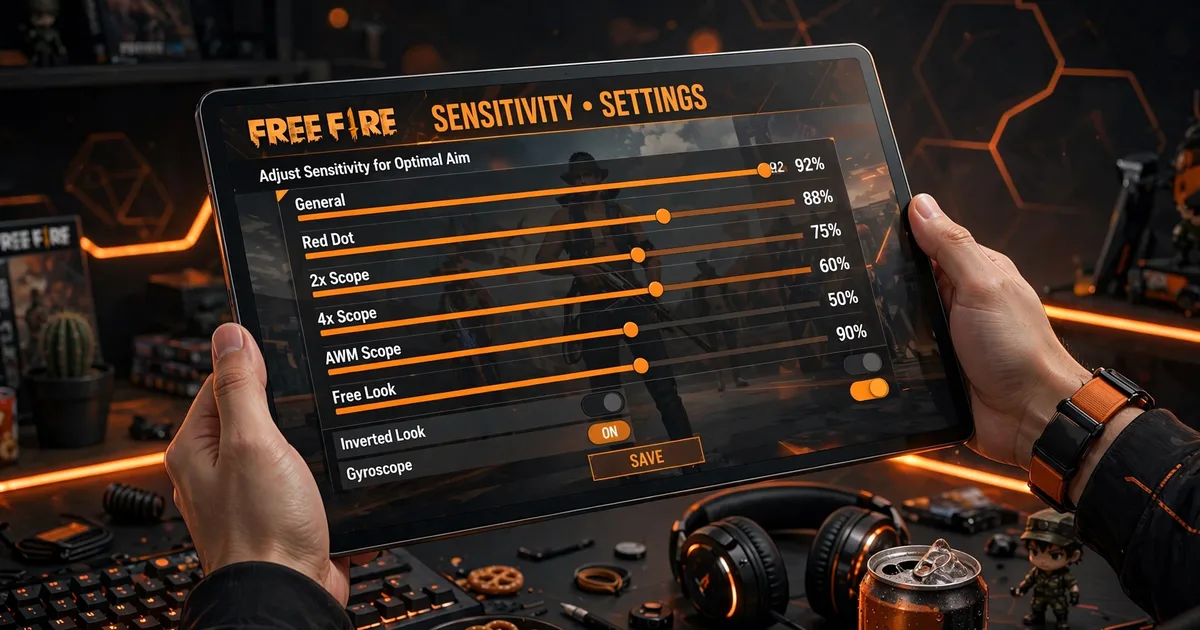
Tested Macro Space v5 baselines, scaled from our phone values:
| Setting | Tablet value | Phone equivalent |
|---|---|---|
| General | 85 | 95 on phone |
| Red Dot | 75 | 85 on phone |
| 2x Scope | 65 | 72 on phone |
| 4x Scope | 55 | 62 on phone |
| Sniper Scope | 45 | 50 on phone |
Rule of thumb: subtract 10 to 15 points from your phone values when moving to a 10-inch or larger tablet. For 8-inch tablets, subtract only 5 to 8 points. If you have never tuned phone sensitivity either, start from our phone sensitivity baseline and scale down from there.
DPI on tablets: shorter travel, calmer aim
Tablet players should run slightly higher DPI than phone players, around 550 to 650. The bigger screen means longer thumb travel, and higher DPI shortens that travel back to comfortable distances. This is the opposite of the sensitivity change, and both are needed: lower in-game sensitivity for stability, higher DPI for comfortable reach.
The method for finding your exact DPI is the same as on phones, covered in our DPI guide. On tablets, test with long drags across the full screen width, not short flicks.
HUD layout: use the space you paid for
The biggest tablet mistake is keeping a phone HUD cramped in the middle of a huge screen. Spread out:
- Fire button to the lower right edge. Your right thumb rests there naturally on a tablet grip. Size 60 to 65 percent.
- Left-side controls wide. Joystick, crouch, and prone get breathing room on the left half. No more fat-fingering two buttons at once.
- Scope and weapon switch top-right. Reachable with a right-index finger without moving your aim thumb.
- Keep the center clear. The whole point of a tablet is vision. Do not clutter the middle of the screen.
Build it with our custom HUD guide, then play five matches before judging. Tablet muscle memory takes slightly longer to settle than phone memory.
iPad vs Android tablet notes
- iPad: iPadOS does not allow the same DPI tweaking as Android, so do all your tuning in the sensitivity sliders. The 120Hz ProMotion iPads are phenomenal for Free Fire, keep General at 85 and enjoy the smoothness.
- Android tablets: you get full DPI control through Macro Space v5, which is a real advantage. Galaxy Tabs also let you force 120Hz in game settings, do it.
- Both: use a case with a grip or a tablet stand for long sessions. Wrist fatigue ruins aim faster than any wrong setting.
The 20-minute tablet calibration
- Set the baseline above, then open the training ground.
- Do full-width drags: swipe from one screen edge to the other and check you land a clean 180. Adjust General until one comfortable swipe equals one half-turn.
- Flick to 10 dummy heads with the M1887. Count one-taps. Below 6 means General is still too high.
- Play two casual matches focusing only on whether the aim feels calm. Calm is the goal, not fast.
Tablets reward calm aimers. Once calibrated, most players report their headshot rate climbing within two weeks, simply because targets are bigger and the sight picture is clearer.